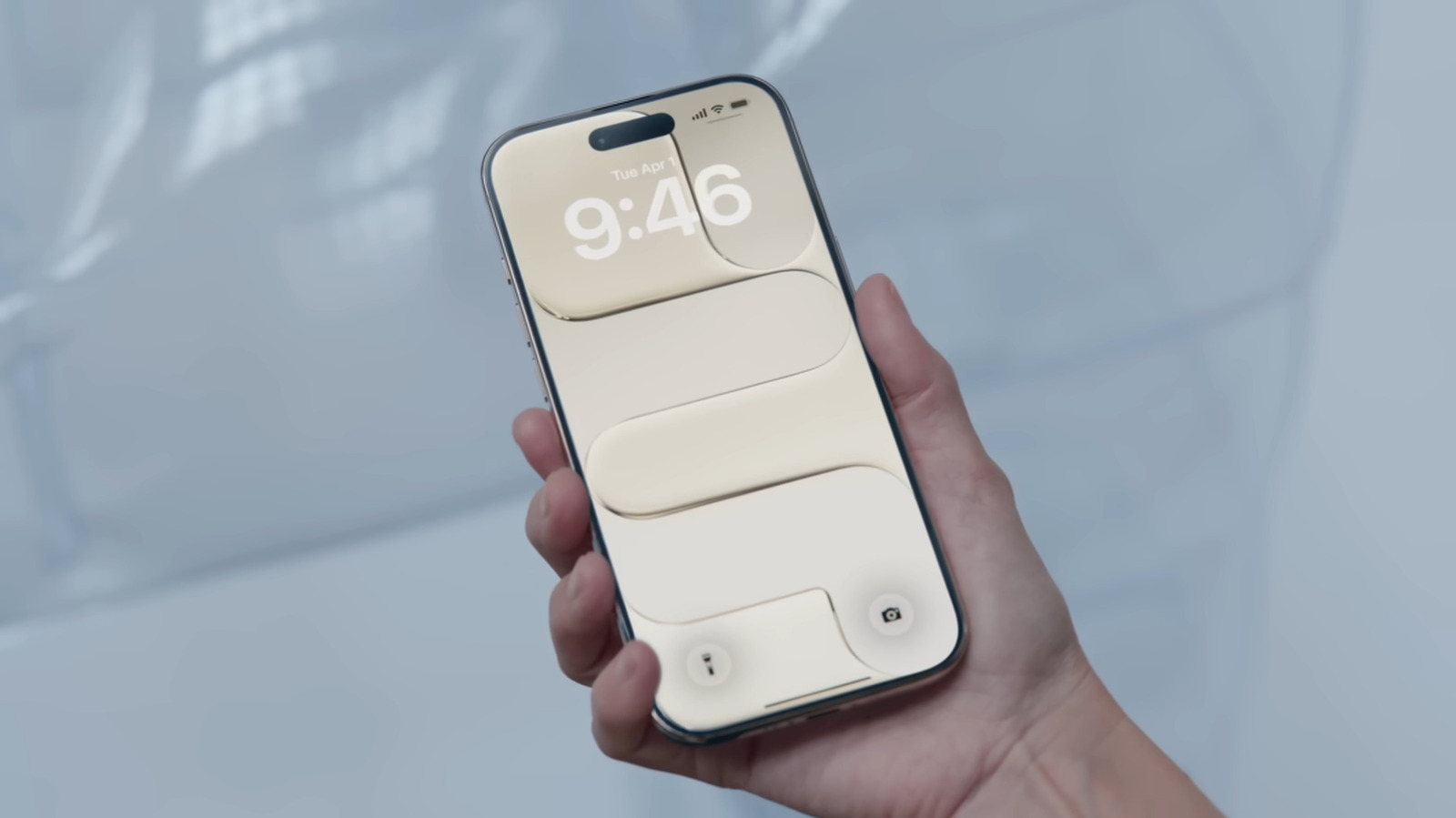
It has been a while since iOS 26 rolled out to iPhones, and by now, you might be pretty much familiar with the major iOS 26 features. You already know about the new Liquid Glass design and how it’s a stark contrast from the flat, colorful UI iPhones had for years. Maybe you’ve also tried setting up call screening, enabling text spam filtering, and using the live translation integrated into FaceTime and Messages. Many of these features are welcome changes that prove useful in your day-to-day life, but if you think the system upgrades stop there, think again.
Just like it does every year, Apple continues to improve its current operating system for a few months after launch. For iOS 26, these minor enhancements started with the iOS 26.1 and the update has seen a few iterations. But what exactly changed in the iPhones with these updates? Let’s walk you through five of the features Apple recently added to your iPhone that are worth exploring.
AirDrop codes for unknown contacts
AirDrop comes in handy whenever another iPhone user wants to share a file or photo with you. But as convenient as it is, it isn’t particularly secure. When it’s set to Everyone for 10 Minutes, any random nearby iPhone — not just the device you’re expecting — can easily send you a transfer request. Sure, you do need to approve it first to start the transfer, but there’s practically no restriction on the part of the sender. All they have to do is select anyone available within range. This encourages some to send spam requests.
In response to this years-long issue, Apple added AirDrop codes to iOS 26.2. AirDrop codes are verification codes provided by the recipient during a transfer request. The sender has to type this code on their end; otherwise, the transfer won’t go through. You’ll only need AirDrop codes for devices that aren’t in your contacts, though. When receiving files and photos from friends and family, AirDrop works as usual. Here’s how you can generate and use AirDrop codes while making a transfer with an unknown sender:
- Set your AirDrop to Everyone for 10 Minutes.
- On the sender’s device, select the file or photo to be shared.
- Tap the Share icon and select AirDrop.
- Under People, tap the recipient’s iPhone.
- Back on your device, wait for an AirDrop Code prompt to appear.
- Hit Get AirDrop Code and ask the sender to type the generated code.
Almost immediately after, the transfer will start, and you should see the progress on your screen. Press View to view the file once the transfer successfully completes.
Liquid Glass customizations
Marinel Sigue/BGR
If there’s one feature that’s strongly dividing iPhone users into two camps, it’s Liquid Glass. Some like its novelty; others hate its dynamic looks. Fortunately, with iOS 26.1 and iOS 26.2, Apple has solved some user issues with Liquid Glass.
These updates included two customizations related to the ever-polarizing UI design. First, iOS 26.1 features a Liquid Glass setting that applies either a Clear or Tinted look to the UI elements. Clear is the default Liquid Glass effect, which is transparent and reflective. Meanwhile, Tinted is more opaque and tones down the glass-like appearance. Then, iOS 26.2 fixed Liquid Glass on your lock screen clock. You can now change how glassy the clock should be to fit your style and readability preferences.
On iOS 26.1 and later, here’s how to set which Liquid Glass setting to use:
- Go to Settings.
- Tap on Display & Brightness.
- Open Liquid Glass.
- Pick between Clear and Tinted.
If you’ve updated to iOS 26.2 and later, here’s how you can adjust the appearance of your lock screen clock:
- On the lock screen, press and hold an empty space.
- Hit Customize and tap on the clock.
- In the Glass tab, move the bottom slider to the left to make the clock more glassy or to the right to increase its opacity.
- Press Done to save your new setting.
Besides the slider, you will also see a Solid tab that completely removes the glass effect on the clock.
Alarms for reminders
Marinel Sigue/BGR
The Reminders app on your iPhone is designed to inform you when it’s time to do an important task. Unfortunately, the best it could previously do is send you an alert that sounds like any normal notification you get on your phone daily — meaning, it’s easy to miss. While this worked fine for non-urgent reminders, it wasn’t ideal for time-sensitive reminders that demand your attention.
The good news is, iOS 26.2 fixes this with the new Urgent option for reminders. What it does is trigger an alarm as scheduled. This looks and works like your usual alarm, but with a blue instead of an orange color. With the blaring alarm, you’re less likely to overlook the reminder. To set a reminder as urgent, here’s what you need to do:
- Head over to Settings and scroll down to Apps.
- Under Reminders, toggle the Alarms option.
- Open the Reminders app and hit the plus button in the bottom-right corner to create a new reminder.
- Fill in the fields as you normally would and turn on the Urgent toggle.
- Now, set the date and time. You may also tap Repeat and select your preferred frequency.
- Press the blue check at the top to save your urgent reminder.
At the scheduled time, the reminder will set off an alarm on your iPhone. Hit Snooze to snooze the alarm for nine minutes. But if you want to turn it off, simply tap on Stop. Either way, a reminder notification will pop up on your lock screen. You can mark it as done right there and then to clear the notification, or hit the Reschedule button to set a new schedule.
Screen flash for notifications
Marinel Sigue/BGR
Sometimes, your iPhone’s ringtone isn’t enough to catch your attention whenever a call or message comes in. This is especially true when you’re in a busy place like a restaurant or farmers market. To solve this, Apple introduced LED flash for alerts, where your flashlight will blink for a few seconds whenever you get a notification. This has been around for a couple of years now.
The problem with it, though, is that you won’t always have your phone facing down. So, even if the LED does flash, you might not notice the light if it’s blocked by your hand or a table. As a complement for the LED flash, Apple came up with screen flash for alerts, integrated into iOS 26.2. It’s one of the useful iOS 26 features you might not know about since it’s tucked away in the Accessibility settings, but you should definitely try it out. To enable screen flash for alerts, follow these steps:
- Launch Settings and head to Accessibility.
- Under Hearing, go to Audio & Visual.
- Scroll down to the very bottom and tap on Flash for Alerts.
- Toggle the feature on.
- To flash only your screen, tap on Screen. You can also choose to flash your screen and flashlight at the same time.
In the Flash for Alerts setting, you can also enable Flash While Unlocked and/or Flash in Silent Mode if you want to. From here, every time you receive an alert, your screen should brighten for about a second before returning to the original brightness level.
Support for AirTag 2
In a surprise drop, Apple released the second-generation AirTag in late January, almost five years after the original AirTag hit the market. AirTag 2 is pretty similar to its predecessor design-wise, but under the hood, it comes complete with massive upgrades. For one, it features an Ultra Wideband chip and an enhanced Bluetooth chip that give it 50% more range. That means Precision Finding will work from farther away compared to before. AirTag 2’s built-in speaker also has a 50% volume increase to make it easier to hear from a distance.
To add AirTag 2 support to the current iPhones, Apple simultaneously rolled out iOS 26.2.1 in late January. If you got the new AirTag 2, here’s how to set it up on iOS 26:
- Update your iPhone to iOS 26.2.1 and enable Bluetooth on your phone.
- Pull the tab on your new AirTag 2 and place the AirTag about two inches away from your iPhone.
- Once you see the popup, hit Connect.
- Pick a preset name for your AirTag, or scroll to Custom Name to type a personalized name.
- Tap Continue and press Agree.
- Wait for the AirTag to finish connecting and finally click Done to exit setup.
If you want to try tracking your AirTag, hop on the Find My app and go to Devices. Then, select your AirTag from the list. To make it beep, tap Play Sound. To find the AirTag with Precision Finding (which is essentially like a compass on your phone pointing to the AirTag location), choose Find. From the Find My app, you can also share the AirTag, set up notifications if you leave it behind or when someone finds it, and mark it as lost.